
If you have ever tried to run a grid drawing lesson, you know the setup can be a nightmare. Printing reference photos, handing out rulers, and hoping students measure accurately takes up half the class period. Moving this process to digital devices seems like the obvious solution, but finding a truly free photo grid tool that is actually safe for students is surprisingly difficult.
In preparation for this guide, I tested over a dozen of drawing grid apps and websites. Many that looked promising in the app store—like Ilya Koryakin’s Drawing Grid Maker—were immediately discarded without a full review due to hidden paywalls, glitchy interfaces, or aggressive data tracking. In a 1:1 Chromebook or iPad classroom, teachers cannot afford to waste time on tools that bait-and-switch students or violate district privacy policies.
This guide breaks down the best free drawing grid tools available, focusing on usability, perfectly square grids, and strict compliance with student data safety. But before we look at the modern tools, it helps to understand why we still teach the drawing grid method at all.
The Grid Method in the Art Room
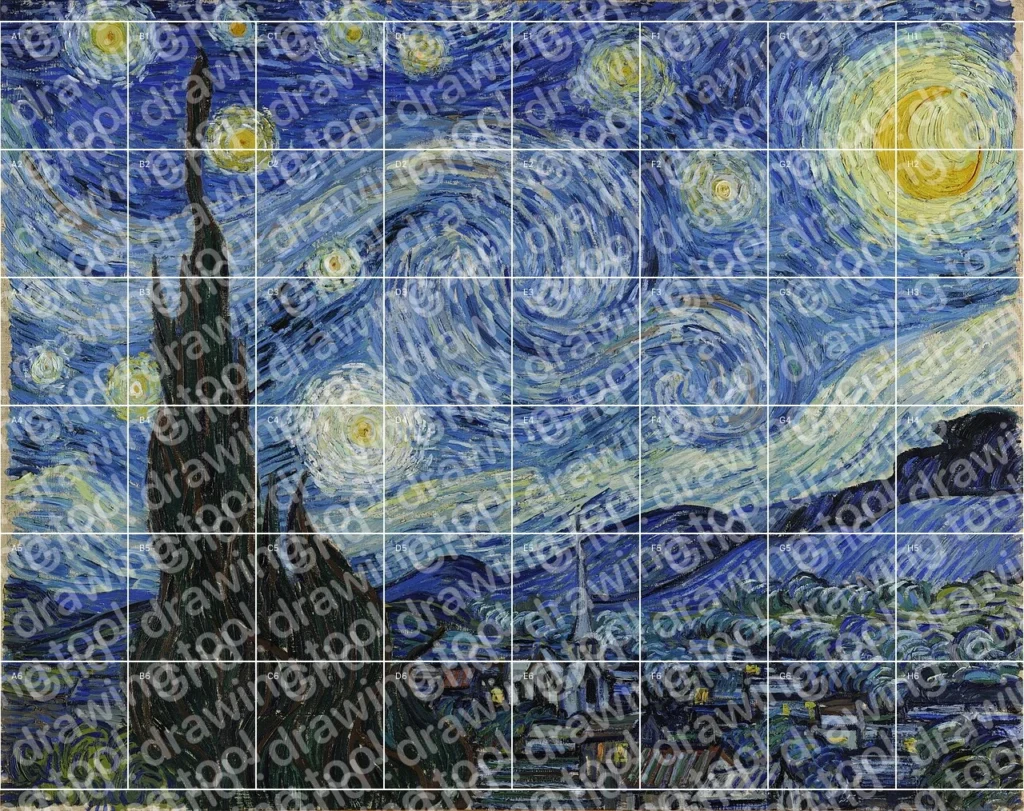
A grid for drawing is not a modern shortcut; it is an observational tool that has been used by artists for centuries. It involves overlaying an evenly spaced grid on a reference image and drawing a matching grid on your paper or canvas. Instead of looking at a complex subject as a whole, the artist focuses on one square at a time.
Historically, master artists relied heavily on grid drawing to solve proportional problems and scale their work:
- Norman Rockwell: The iconic American illustrator frequently used drawing grids to accurately transfer his highly detailed sketches onto his final canvases.
- Diego Rivera: The famous muralist relied on scaled grids to enlarge small concept sketches, making the big enough for massive wall murals.
- Grant Wood: Known for his Regionalist compositions, Wood used grid transfers to maintain his strict, stylized proportions in his large-scale paintings.
- Chuck Close: Contemporary artist Chuck Close took the drawing grid a step further, leaving the grid visible in his massive photorealistic portraits and treating each individual square as its own miniature abstract painting.
Today, teaching the grid method matters because it forces students to stop drawing what they think an object looks like, and start observing what is actually there. It stops information overload by breaking down the visuals into manageable chunks. However, the lesson only works if the grid is mathematically perfect.
Vetting Criteria for the Classroom
When evaluating a grid drawing app or website for school use, star ratings do not tell the whole story. A tool with thousands of five-star reviews might still be a terrible fit for your classroom. Here is what I looked for:
- Student Privacy: Does the app comply with FERPA, COPPA or GDPR? Does it track student data or IP addresses for third-party advertisers?
- CIPA Compliance: Does the app contain unmoderated external links or search functions that could bypass a school’s content filter?
- Perfect Squares: Does the tool automatically calculate mathematically perfect squares, or does it distort the edges into rectangles?
- The “Save” Trap: Can a student actually download their gridded image for free, or is the export button locked behind a paywall or watermarks?
Based on these criteria, here are the top three browser-based drawing grid tools, followed by the mobile apps you should use with caution—or avoid entirely.
The Top 3 Free Drawing Grid Tools (Highly Recommended)
Browser-based tools are generally the best option for art teachers. They require no software installation, bypass mobile app store paywalls and work seamlessly on district-issued Chromebooks.
1. Photo Grid Generator by ArtTeacherTools.com
- Privacy & Safety: This drawing grid is 100% free, has no user tracking and there are no sign-ins required. Images are processed entirely within the student’s browser and are never sent to a server.
- The Experience: I actually built this tool after years of frustration with other apps. For two school years, I relied on other websites (like GriDraw) only to watch my students struggle. They would constantly bring me references covered in slightly elongated rectangles instead of squares. Because we drew perfect squares on our physical paper together as a class, their final drawings would end up stretched and distorted. I built my drawing grid tool to fix this exact problem.
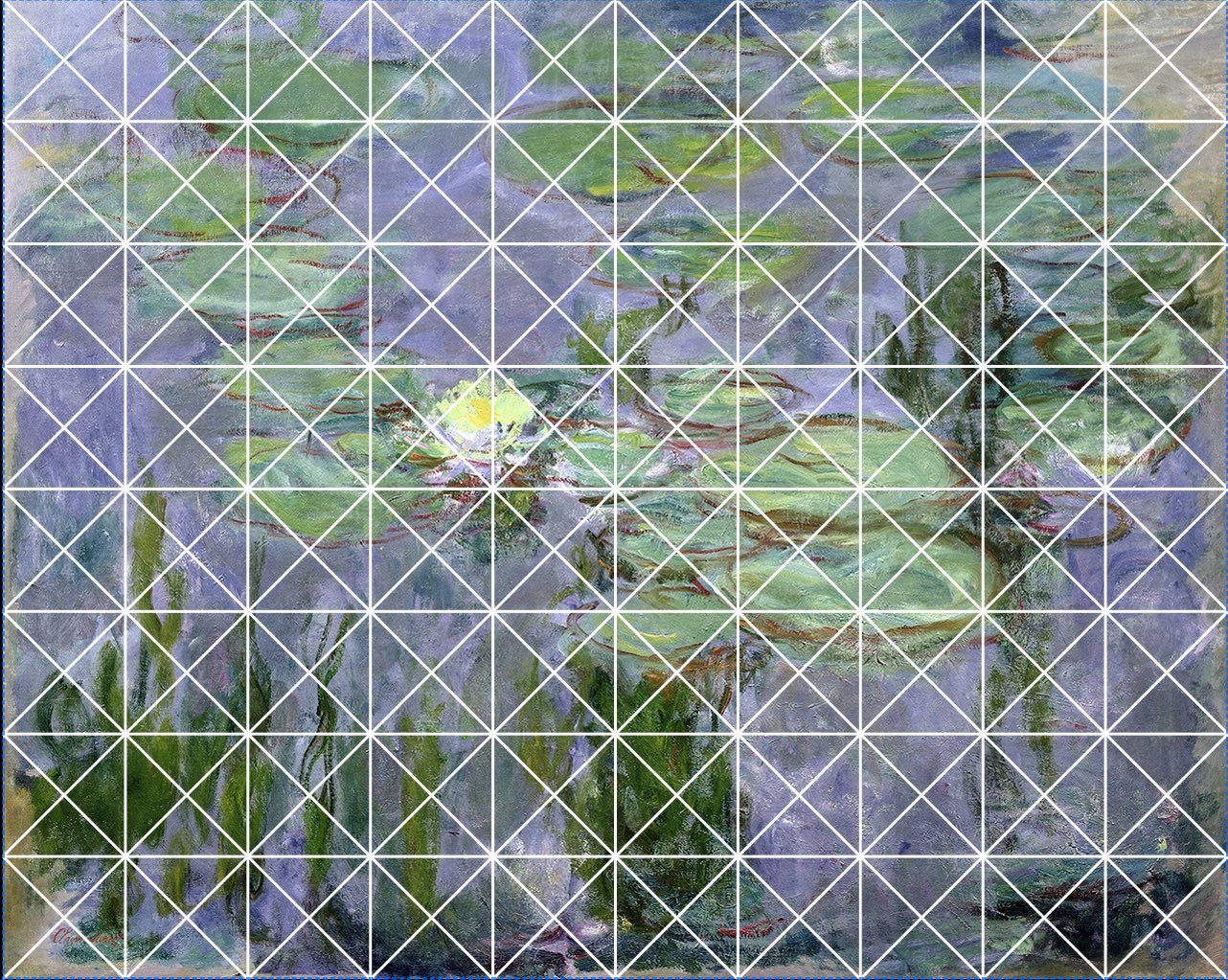
- Features: Upload any image, and the drawing grid tool instantly calculates and applies mathematically perfect squares. If the math doesn’t perfectly divide into the image dimensions, the grid is fully draggable and positionable so you can crop exactly where you want. It includes multiple grid patterns (including diagonals and radial grids), a black-and-white mode for value studies and adjustable grid line colors. It is built specifically for the workflow of a visual arts classroom.
2. GridmakerPro (gridmakerpro.com)
- Privacy & Safety: Excellent. The drawing grid site has no ads, requires no signup, and their privacy policy explicitly claims GDPR compliance with zero tracking cookies.
- The Experience: This is a very clean, professional-looking web app. It offers a black-and-white mode, sepia filters, and the ability to add diagonal lines inside your grid squares. It also features a unique “paper format” option that generates a written printing guide, telling students exactly how far apart to draw their lines on a physical piece of paper. The developers also publish an ambitious roadmap of future features, including isometric grids, Loomis & Reilly methods, batch processing, and Procreate export types.
- The Catch: While the roadmap is exciting, they quote Q2 to Q4 of 2025 for many of these features, and as of 2026, none of them are actually in the tool yet. Functionally, the biggest hurdle is that it does not automatically generate perfect grid squares. I tested it with a perfectly square image, selected their “Square” setting, and it still produced rectangular cells. The site claims that “your preferred grid configuration is automatically saved for next time,” but during testing, this proved baffling. I opened a landscape photo and got a 3×3 grid. I manually changed it to a 5×5 grid. Then, I opened a new photo and was inexplicably given a 4×4 grid. You will need to monitor your students closely to ensure their grids are accurate before they start drawing.
3. GriDraw (gridraw.net)
- Privacy & Safety: This drawing grid tool processes images locally in the browser. However, it does use third-party cookies and advertisers, which could potentially trigger very strict district network filters.
- The Experience: This was the tool I used in my classroom off and on for a couple of years. It was a reliable option because it didn’t require a login and, unlike Photopea, wasn’t blocked by my school’s firewall.
- The Catch: Like GridmakerPro, it requires manual adjustment. Despite giving my students explicit instructions to make sure their grids were perfect squares, they frequently ended up with rectangular grids. Furthermore, there were constantly leftover rows or columns at the edges of the image that were only partial grid squares, which confused students and ruined their proportions if I didn’t catch the mistake in time.
Almost made the list….
Gridmaker (gridmaker.vercel.app)
There was an additional app that shows up in the top of Google search that I did not want to ignore. It is the Grid Maker app. However, this seems to be a pet project by an individual that likes both drawing and building apps (like me!), so I don’t think he looks at his app through the same lens as those that are doing the same thing as a business with full teams of people. I have emailed the developer to find out if would be adding information about his terms of use and privacy policies. If he responds with his privacy policy, etc, I will update where this app lands on the list.
- Privacy & Safety: No ads and no registration, but there is no official privacy policy available. Privacy is the main reason I did not include this one on my list of recommended apps.
- The Experience: A straightforward, easy-to-use site. The tool is front-and-center when the page loads, offering instant downloads with no watermarks. You can change line opacity, width, and color. It also includes an incredibly specific printing guide. For example, when I put a 3×3 grid on an image and selected letter-size paper, the guide literally told me: “For a Letter print (216x279mm): Draw 2 vertical lines at 72.0mm intervals. Draw 2 horizontal lines at 93.0mm intervals. Label each cell from A1 to C3.”
- The Catch: First, you have to manually adjust the columns and rows to get a perfectly square grid. Second, and more importantly for teachers, the site includes a direct link asking users to email their artwork to a Gmail account. While building a user gallery is an awesome idea, the execution of it needs work for students since directly emailing an unvetted developer violates basic district communication policies. If you use this one, direct your students NOT to email or engage on social media (or better yet use ClassWize, GoGuardian or your district’s equivalent to lock down student browsers to just the grid tool page).
Use With Caution: Powerful Tools with Catch-22s
These tools work well mechanically, but they come with specific hurdles that require workarounds or heavy teacher supervision.
Photopea (photopea.com)
For years, Photopea was the veteran art teacher’s go-to solution. It is a highly powerful, free browser-based clone of Photoshop where you can set perfect grid lines and edit the image completely.
The Problem: Photopea is frequently blocked by school district IT departments. The free version relies on a continuous tower of third-party display ads stacked on the right side of the workspace. If your school uses an ad-blocker, Photopea aggressively fights back and restricts the tool. Furthermore, it contains search plugins that link directly to external stock image sites (like Pixabay). Because those sites host unmoderated content, it regularly triggers CIPA flags on school networks.
Grid# – Add grid on image (iOS App by Wang Jinpeng)
- Stats: 4.6 stars, over 9,000 reviews.
- The Good: As soon as you open the app, you choose to take a photo or upload a file into a clean workspace. You can choose a fixed grid for free (movable grids cost $3.99). It uniquely allows you to “use additional grids” to stack them on top of each other (e.g., one grid with large squares overlaid with another grid of small squares). You can even save your grid setup as a template, sort of like a preset. All the standard features (changing grid line color, size, etc) are there. You can save your image without a watermark.
- Bad UI: While saving your work is a feature, the major flaw is that you have to use a hidden gesture to save your work. At first I thought that you could not download the gridded image and deleted the app. There is no download button and no mention of downloads in the app settings. Only after reading reviews did I learn that you must long-pressing on the image itself, which brings up options to save the “grid only” (a unique feature) or “image with grid.”
- The Problem: The workspace features an “Upgrade to Pro” link prominently displayed at the top center, alongside a smaller banner ad along the bottom center edge (which is at least less intrusive than the full-width banners in other apps). Also, the moment you successfully download your gridded image, you are hit with a mandatory, full-screen ad that you must click out of.
Grid: Drawing Tool (iOS App by Ujjwal Chafle)
- Stats: 3.0 stars, 2 reviews.
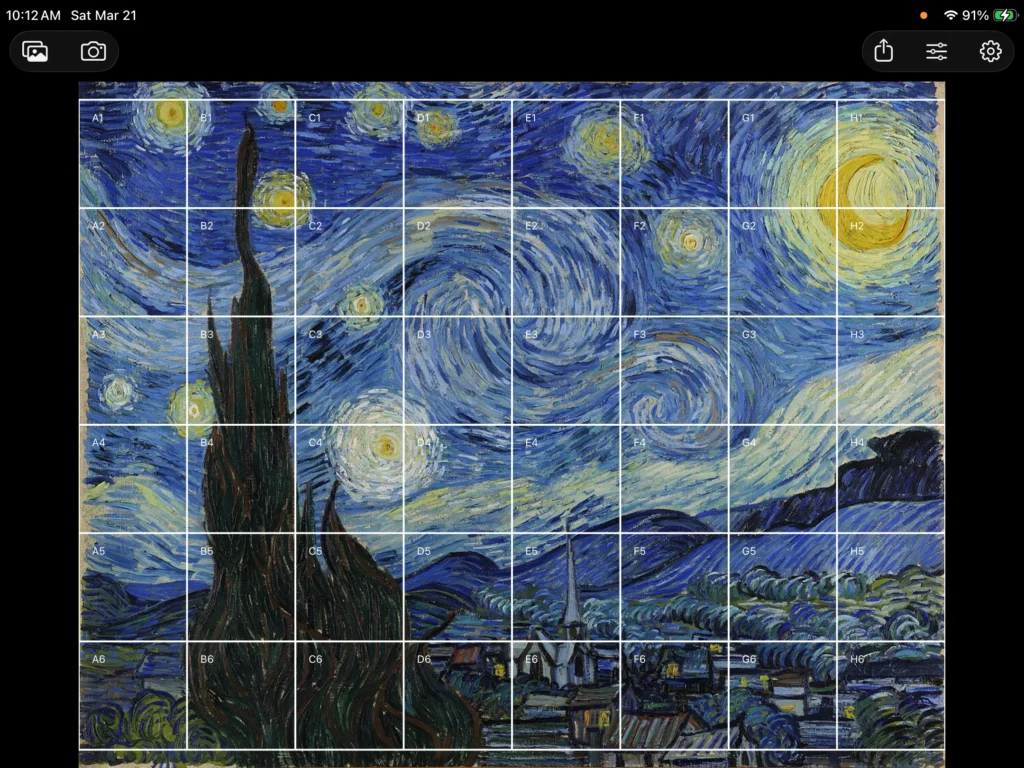
- The Good: This app actually boasts excellent privacy. The App Store confirms “Data Not Collected,” and there are zero ads. During testing, it successfully generated perfect, labeled squares. You can toggle labels, show the center of the image, show rule of thirds lines, and lock your grid.
- The Problem: To achieve perfect squares, the app leaves ungridded, empty space on the left and right of your image. This unfortunately means parts of your reference photo that need the grid are simply cut off from it. You can tweak columns and rows to minimize the cutoff, but it is a hassle. Also, features like the black and white mode, diagonal grids, and abstract “golden spiral” grids are locked behind a paywall.
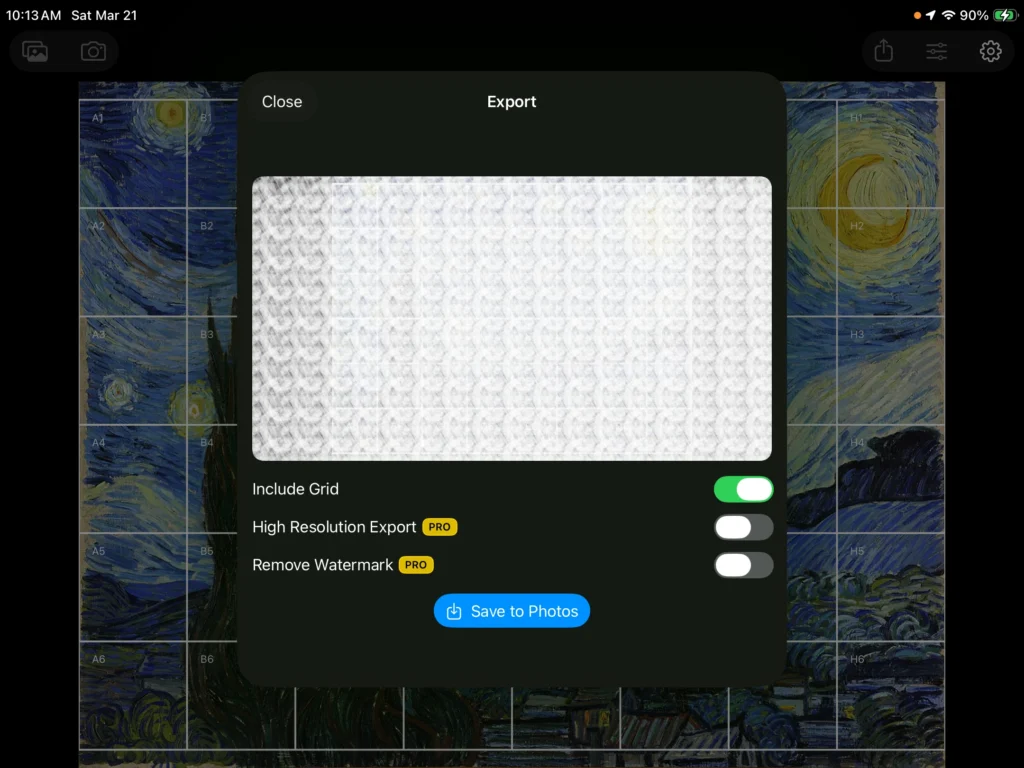
- The Dealbreaker: Deceptive marketing. The developer advertises “zero watermarks,” but if you use the free version to export your photo, the downloaded image is completely covered in a heavy, semi-transparent watermark pattern, rendering it almost unusable. If your students use this, they must take a simple screenshot of their device rather than using the app’s export button. However, I can not recommend that workaround since the developer is charging for that feature and I assume they would not approve.
Do Not Recommend: Keep These Out of the Classroom
These mobile apps might have high star ratings in the app store, but my hands-on testing revealed they fail the test for classroom usability and student safety.
DrawinGrid (iOS App by Butterflyray Limited)
- Stats: 4.7 stars, 4.5K reviews.
- The Overview: This is actually a very nice drawing app, but for students you are responsible for, it does not make the cut. The very first thing this app does upon downloading is ask to track your data. (I selected “Ask app not to track”). The interface allows you to add grid labels and diagonals (putting a little ‘x’ inside every square of your drawing grid), and includes a helpful toggle to “Keep device awake in grid view.” You can crop, drag, and zoom the image, but the grid itself is not repositionable. Furthermore, while you can adjust the number of columns, the row adjustment is greyed out. This results in the bottom row of your image being cut off and distorted into rectangles. And it costs $10 just to remove the banner ad running along the bottom.
- The Dealbreaker (CIPA Violation): When choosing an image for your drawing grid, you are given three options: load from your device, take a photo, or load from Unsplash. Unsplash is an unmoderated platform. I tested this by simply searching the word “nude” in the app’s Unsplash search bar, and I was immediately shown images that are absolutely not safe for school. If our target audience was adults, this searchable library would be no problem….unfortunately it is not. Do not let students use this app on their devices.
Draw Grid on Image (iOS App by Thang Do)
- Stats: 4.4 stars, 198 reviews.
- The Overview: Just like the previous app, this one immediately asks to track your data. The workspace features little rulers on the edges (you can choose inches or centimeters) and allows you to input specific paper types like A0 through A5. You can choose how your drawing grid adjusts (set rows only, set columns only, etc.). However, it fails to automatically generate perfect squares; you have to play around with columns and rows, and even then, the last row is usually cut off. The interface is highly distracting, cluttered with a constant banner ad along the bottom and occasional full-page ads you have to manually close.
- The Dealbreaker: The ultimate bait-and-switch. A student can spend class time adjusting their line width, color, and rows, but they cannot actually download the grid for drawing without paying for a $4.99 upgrade.
Finding the Right Fit
A grid drawing lesson should be about building observational skills, not fighting with technology. When a student spends their class time battling hidden export gestures, manual math adjustments, unmoderated search bars, or full-screen ads, the educational value of your grid drawing lesson is lost.
Stick to browser-based free drawing grid tools that respect student privacy, calculate the math automatically, and let your students get straight to drawing.
If you found this drawing grid guide helpful in navigating the maze of apps, please share this article with your fellow art teachers to help them save time and keep their students safe online while searching for the perfect drawing grid tool!
Note: The features listed in this post were tested and accurate on the publish date of March 21, 2026.
Leave a Reply